Help & Troubleshooting
The Get Seen Playbook — quick fixes for the most common questions.
Two setups are mentioned below: Cowork is the Claude desktop app; the Project-Based path is Claude in a browser at claude.ai (for Chromebooks or locked laptops).
Getting started & your athlete's info
What's the difference between Cowork and Project-Based?
They're the two ways to run the Playbook. Same Playbook either way. The difference is whether Claude works with your files directly or you manage them manually.
Cowork works directly with your files. It's a mode in the Claude desktop app (Mac or Windows): you connect a local folder, add the plugin, and Claude works in that folder. Your tracker updates in place, drafts save to Gmail, and setup is close to one click. It needs the desktop app and a paid plan.
Project-Based runs in a Claude Project. You create the project (in a browser at claude.ai or in the desktop app), upload your 4 files, and run any prompt just by naming it. You download, save and upload your files manually. It works on any computer, including Chromebooks and locked work laptops; Claude just doesn't update your files for you.
Claude doesn't see any of my athlete's information.
If you're using Cowork: Make sure you've connected your local folder, uploaded the 4 Playbook files (the Guide, Email Template Library, Pipeline Tracker, and Prompt Library), and already run the setup. Your project instructions are the file named CLAUDE.md in that folder. If the folder isn't connected, Claude is working blind — reconnect it and try again.
If you're using the Project-Based path (browser): Make sure you're working inside your Claude Project (not a regular chat), that all 4 files are added to the Project, and that your starter instructions — the ones with your athlete's details — are in the Project's instructions. If they aren't, run P0-01 from your Prompt Library and it fills them in for you. If you haven't run the setup prompts (P1-01, then P2-01) yet, Claude doesn't have your athlete's profile built.
Claude keeps asking me things it should already know.
Claude can't see your project instructions, so it doesn't know your athlete. Check two things:
1. You're working in your project workspace. On the Project-Based path, start every chat inside your Claude Project, not a regular chat. Make sure your 4 files are added to the Project and your starter instructions are in its Instructions.
2. On Cowork, your folder is connected. Your project instructions live in your folder as a file named CLAUDE.md, so Claude can only read them when the folder is connected. If you started a session from the sidebar, add your folder before you go on. Check that CLAUDE.md is in the top level of the folder, next to your Playbook files.
Then ask Claude: “Read my project instructions and tell me my athlete's name and grad year.” If it answers correctly, you're set.
Do I need to download anything? Where is Claude?
The Playbook runs inside Claude. On Mac or Windows, download the free Claude desktop app from claude.com/download (it's not in the App Store or the Microsoft Store). On a Chromebook, you don't download anything — use Claude in your browser at claude.ai (that's the Project-Based path).
Your plan & which model to use
Claude keeps stopping, slowing down, or says I've hit a limit.
You're most likely on the free plan. Free Claude runs the Project-Based path (up to 5 projects), but its usage limits may slow things down, so a paid plan is recommended. Cowork requires a paid plan.
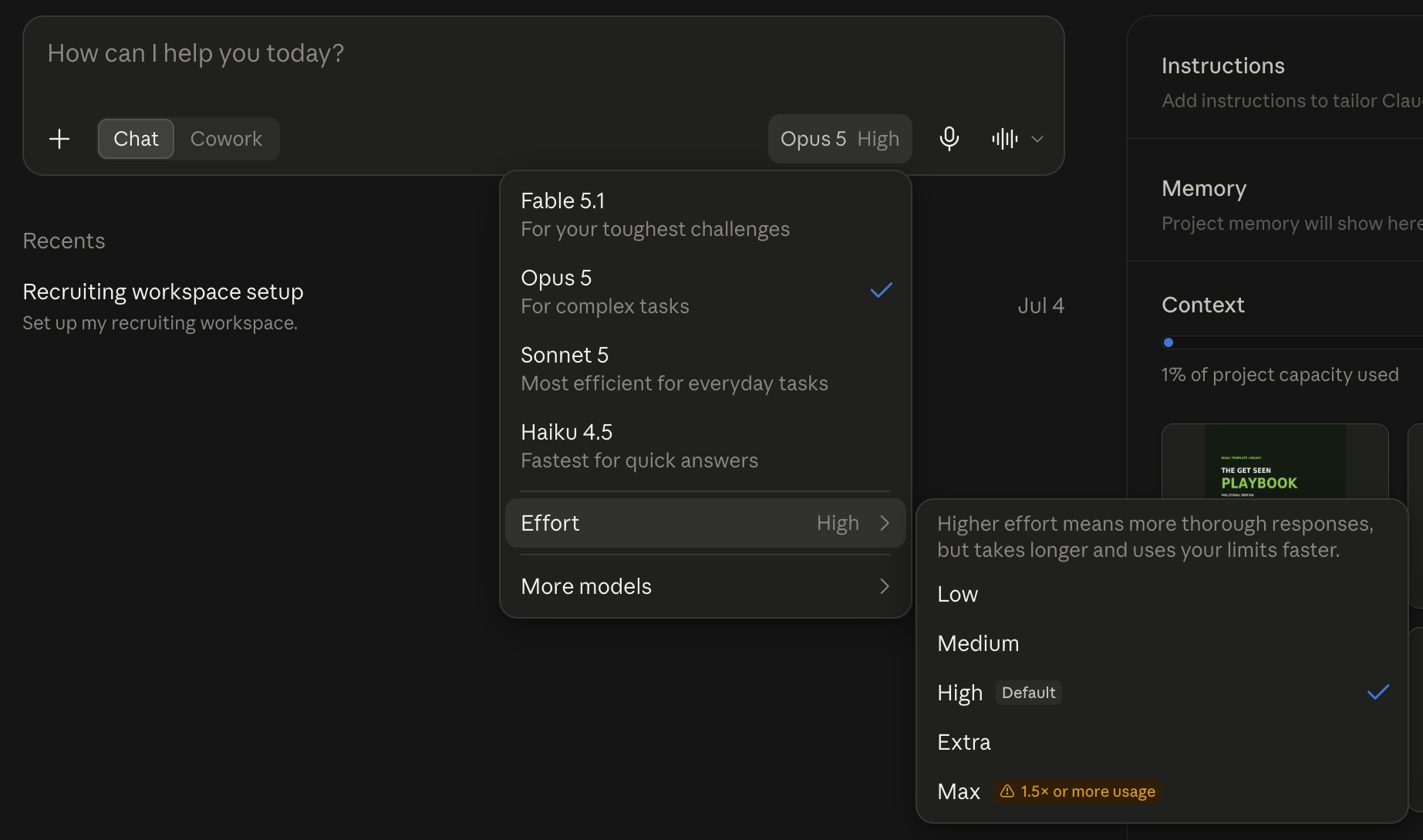
Which model should I use?
Use the most capable one. That's what powers the heavy-thinking steps like the Targeting Brief and the Athlete Dossier. Open the model picker and read the descriptions, not the names: you want the one that says something like “for your toughest challenges.” As of September 2026 that is Fable 5.1, with Opus 5.5 right behind it and easier on your usage limits. Names change every few months, the descriptions hold. A lighter model is fine later for routine logging. (If your brief or dossier came out thin, the model you're on is the first thing to check.)
Finding things in the app
I don't see “Cowork” — I only see Home and Code.
That's expected. Anthropic renamed the Cowork tab to Home in a 2026 update. Home is the same place everything lives — just make sure Home is highlighted (not Code).
I can't find where to add the plugin.
Click Customize in the left sidebar, then Plugins. Click “Add,” then “Add marketplace.” Choose “Add from a repository,” paste getseenplaybook/gsp-marketplace exactly as shown (searching by name won't find it), and install Get Seen Playbook. The Setup Guide shows each step.
Not using Cowork? You don't need the plugin — just follow the Project-Based path in the Setup Guide.
The plugin screen shows other companies (Wix, Monday, and so on) and I don't see Get Seen Playbook — is it blocked?
Nothing's blocked. That screen — labeled “Browse plugins” or “Anthropic & Partners” — is Claude's general directory of other companies' plugins, and ours isn't listed there on purpose. You add Get Seen Playbook yourself: Customize, then Plugins, then “Add,” then “Add marketplace,” then “Add from a repository,” and paste getseenplaybook/gsp-marketplace.
The app won't install the plugin file or only accepts a “.zip.”
Skip the file method entirely: add the plugin from the marketplace instead — Add from a repository → getseenplaybook/gsp-marketplace. The plugin-file download is only a fallback for older app versions. If your app only accepts a .zip and you already have the file, you can rename it from “.plugin” to “.zip” and add that — or just email alva@getseenplaybook.com and I'll send you the right file.
Getting the best results (working with Claude)
Why doesn't the draft sound like my athlete yet?
This is normal at the beginning. Finding your athlete's voice is something Claude learns over time, not instantly. The more email drafts you review, edit and tailor to your athlete's way of speaking and writing, the sooner future first drafts sound more like your athlete. Give it a few rounds; that's the training, and it's worth it.
Two things speed it up: when a draft is off, tell Claude directly (“this doesn't sound like her,” and what's off — too formal, not how she'd say it), and run the Lock Your Voice prompt (P2-05) with a few real samples of your athlete's own writing. The more it has to learn from, the faster it clicks.
Claude got something wrong. How do I fix it?
Correct it directly — you won't hurt its feelings, and being specific is what makes it better. Tell it exactly what's wrong (“that stat is off,” “she plays libero, not DS”) and it'll fix it. You're the editor; Claude handles the volume, you keep it honest.
Claude seems to forget things or get worse in a long session.
That's called drift — long chats can start to wander or lose the thread. Two fixes: start a new chat for each task, and for big jobs, split them (say, 8–10 emails at a time). If you're mid-project, ask Claude for a short handoff summary you can paste into the new chat so it picks up right where you left off.
The brief suggested divisions or schools I didn't expect.
That's the brief doing its job — it's meant to give you an honest read, even when it isn't what you hoped for. You're not stuck with it: tell Claude what you want to adjust (“include more D2,” “focus on the Northeast”) and it'll rework the list with you. It's a starting point you steer, not a verdict.
Emails & Gmail
Claude drafted an email but I can't find it.
Your drafts save to your Gmail Drafts — not into the chat, and nothing ever sends on its own. Open Gmail and check your Drafts folder. You review and send every email yourself.
Claude is asking about “connector discovery” or says it needs Gmail.
That's Claude asking permission to connect your email so it can save your drafts. Choose Turn on, then connect your Gmail. Your drafts save to Gmail Drafts, and you always review and send them.
Claude says it couldn't save my draft to Gmail.
When you connect Gmail, Google asks what Claude may do with your email. Allow all of it, including creating drafts. If something was left unchecked, connecting again is not enough, because Google keeps your old choices. Disconnect Gmail completely, then connect it again and allow everything.
Your pipeline tracker
Claude made a “v2” of my tracker — now I have two.
The system is meant to update your one tracker in place. Tell Claude to work on your single tracker; when you want a saved snapshot, it drops a dated copy into your Pipeline/Archive folder. You should only ever keep one working tracker.
My dates or “sent today” counts look wrong.
Tell Claude your local time zone. Some tools (Gmail included) log by UTC, so an email sent late in the evening can roll onto the next day. Once it knows your time zone, it reconciles the dates correctly.
Windows & Chromebook
Windows: Cowork won't start.
Windows needs Virtual Machine Platform turned on — accept the prompt when it appears, then restart — and usually administrator rights. If your machine is locked down by work IT and won't allow it, use the Project-Based path in your browser instead; the whole Playbook still works that way.
I'm on a Chromebook (or a locked work laptop).
Cowork (the desktop app) is Mac and Windows only. Use the Project-Based path: open claude.ai in your browser, create a Project, add your 4 files, run P0-01 to fill in your starter instructions, and run any prompt just by naming it. You keep the full Playbook — you download, save and upload your files manually instead of Claude doing it for you.
I downloaded the files but Claude can't find them (Project-Based).
First save the files somewhere you can find them, like your Downloads folder. Then in your Project: Add knowledge → Add content → My files → Downloads — or just drag and drop the files straight into the Project.
Accounts
My athlete is under 18 — can they have their own account?
The Claude account should be in a parent or adult's name. Claude requires the account holder to be 18 or older, and Anthropic actively checks: an account that looks like it belongs to a minor can be locked until the holder verifies their age with an ID. So a parent sets it up and runs the sessions together with their athlete.